.svg)
Learn how to set up punch rules and add your own break rules and warnings
Last Updated: 04/03/2025
What's covered:
Scheduling Rules and Warnings
Employees over 18 are generally entitled to rest breaks during work, daily rest, and weekly rest, which may be unpaid depending on the contract. In everyday, you can set up custom break rules to match your contract and configure warnings and critical notifications to ensure accurate break allocation and compliance with UK working time directives. Additionally, you can define punch thresholds to manage clock-in and clock-out times.
How to find the Scheduling Rules and Warning Settings:
- Navigate to the Settings tile from the main menu
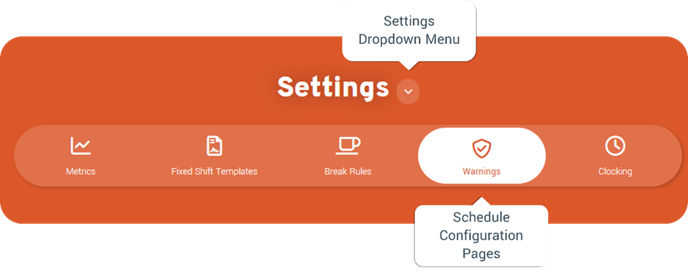
- Click on the Settings Dropdown Menu and select Schedule
- Select the relevant Schedule Settings page to update or add rules and warnings
Break Rules: Set up rules based on pay basis, age, and shift duration to automatically assign paid or unpaid breaks. Several pre-delivered break rules comply with UK legislation, but you can deactivate them if needed.
Additional Rules: Configure punch rules for hourly and salaried employees and specify the start day of your working week.
Warnings: Enable schedule warnings to alert managers when they are approaching or exceeding working time limits. Pre-delivered rules align with UK working time directives, helping ensure compliance.
Break Rules
In everyday, break rules are used to automatically assign paid or unpaid breaks based on pay basis, age, and shift duration. Predefined break rules that comply with UK legislation are available by default, but you can deactivate them if they are not needed.
Important! Please note:
Break rules are automatically applied, so employees do not need to log breaks or clock in/out for them to take effect.
Break rules are set globally and cannot be configured for specific locations or roles.
Predefined Break Rules
Under 18 – Hourly Paid
- Less Than 4.5 Hours: No Break
- More Than 4.5 Hours: 30-Minute Paid Break
Under 18 – Salaried
- Less Than 4.5 Hours: No Break
- More Than 4.5 Hours: 30-Minute Paid Break
Over 18 – Hourly Paid
- Less Than 6 Hours: No Break
- 6 to 9 Hours: 20-Minute Paid Break
- 9 to 13 Hours: 20-Minute Paid Break
Over 18 – Salaried
- Less Than 6 Hours: No Break
- 6 to 9 Hours: 20-Minute Paid Break
- 9 to 13 Hours: 60-Minute Paid Break
Adding Break Rules
- Go to the Break Rules page in the Scheduling Settings.
- Click Add to create a new break rule.
- Enter a Name for your break rule to easily identify it later.
- Define Your Rule and who it applies to using the Expression Builder:
- Drag and drop Qualifiers, Operations, Values, and Joiners to create your rule.
- Double-click to remove an option if needed.
- Check the pre-delivered rules for examples and inspiration.
- Set the Break Length in minutes.
- Choose Paid or Unpaid:
- For hourly paid employees, unpaid breaks are automatically deducted from the total shift time.
- Activate the Rule by setting the Enabled option to True.
- Click Save to apply your new break rule.
Additional Rules
On the Additional Rules page you can set what day your working week starts on and create punch rules to regulate how employees’ clock-in and clock-out times are recorded and processed.
What are Punch Rules?
Punch Rules help reduce the number of timecard reviews by automatically approving clock-ins and clock-outs within a set time range. You can specify how early or late an employee can clock in or out compared to their scheduled shift start or end time.
For example, if you set the early and late start thresholds to 5 minutes, any clock-in that occurs more than 5 minutes before the scheduled start time will be flagged for manager review. Clock-ins that happen within 5 minutes of the scheduled start time will be automatically approved.
By using clocking thresholds, you minimise manual adjustments, saving you time and ensuring smooth timecard management.
Setting up Punch Rules
- Navigate to the Additional Rules Page in the Scheduling Settings.
- Click Hourly or Salaried Punch Rules to open the section.
- Enter a time (in minutes) to define the clocking thresholds for the following situations:
- Early Start: Clocking in before the scheduled shift time.
- Late Start: Clocking in after the scheduled shift time.
- Early Finish: Clocking out before the scheduled shift end time.
- Late Finish: Clocking out after the scheduled shift end time.
- Enable these rounding options by setting them to “Yes” to create a clocking window.
- Click Save to apply your settings.
Here are some examples of how punch rules can differ for hourly and salaried employees, helping you maintain consistent and fair timekeeping practices.
Hourly Punch Rules:
- Early Start Threshold: 5 minutes
- Late Start Threshold: 3 minutes
- Early Finish Threshold: 2 minutes
- Late Finish Threshold: 5 minutes
An employee’s shift starts at 11:00 am and finishes at 7:00 pm
They clock in at 9:57 am → Rounds to 11:00 amThey clock out at 7:02 pm → Rounds to 7:00 pm
Salaried Punch rules:
- Early Start Threshold: 15 minutes
- Late Start Threshold: 10 minutes
- Early Finish Threshold: 5 minutes
- Late Finish Threshold: 15 minutes
An employee with a 9:00 am to 5:00 pm shift clocks in at 8:50 am and clocks out at 5:10 pm. This rounds to 9:00 am to 5:00 pm as per the defined thresholds.
Best Practices for Setting Up Punch Rules
- Balance Flexibility and Accuracy: Set reasonable thresholds that reduce minor discrepancies without creating payroll inconsistencies.
- Communicate Clearly: Make sure employees understand the rules to minimise misunderstandings and disputes.
Working Week Start Day
While Monday is a common day to start your working week, this may not be suitable for everyone. Some companies choose other days based on their business needs, industry standards, or cultural practices. For example, organisations operating in the Retail and Hospitality industries may start their week on a Sunday to help managers plan schedules around peak weekend traffic.
Important! Please note:
You must set your week start day within the first two weeks of using everyday. If you don’t, it will default to Monday. After this initial period, the week start day cannot be changed, as doing so would impact absences and payroll.
To adjust your working week’s start day:
- Go to the Additional Rules page in the Scheduling Settings.
- Click the Week Start Day dropdown to open the section.
- Select the Day you want your week to start on.
- Press Save.
Warnings
Warnings help managers stay compliant with working time regulations by alerting them when scheduled hours are nearing or exceeding limits. These ensure that rotas follow both legislative and company policies.
There are two types of warnings:
- Critical Warnings: Alerts the manager when submitting the schedule and prevents submission of the rota until the hours are adjusted to comply with the rule.
- Advisory Warnings: Alerts the manager when submitting the schedule, but the schedule can still be submitted.
Several pre-delivered warnings are available that comply with UK working time directives, but you can also set up custom warnings based on your company policies.
Important! Please note:
Warnings are set as global rules and cannot be configured for specific locations or roles.
Pre-delivered warnings are configured by default to comply with UK working time directives.
You can create custom rules to align with your company’s policies.
Predefined Warnings
Rolling Days Off
- Under 18: Must have 2 consecutive days off within any 7-day period — Critical
- Over 18: Must have 1 day off within any 7-day period — Warning
Working Hours
- Under 18: Maximum hours per day (8 hours exceeded) — Critical
- Over 18: Maximum hours per day (11 hours exceeded)— Warning
- Under 18: Maximum hours per week (40 hours exceeded) — Critical
- Over 18: Maximum hours per week (48 hours exceeded) — Warning
Shift Length
- Under 18: Maximum shift length (8 hours exceeded) — Critical
- Over 18: Maximum shift length (11 hours exceeded) — Warning
Rest Breaks
- Under 18: Minimum rest between shifts (720 minutes not met) — Critical
- Over 18: Minimum rest between shifts (660 minutes not met) — Warning
Days Worked per Week
- Under 18: Maximum days worked per week (5 days exceeded) — Critical
- Over 18: Maximum days worked per week (6 days exceeded) — Warning
Adding Warnings
- Go to the Warnings page in the Scheduling Settings
- Click Add to create a new warning.
- Enter a clear and descriptive name for your warning.
- Use the Expression Builder to define who the warning applies to and when it is triggered:
- Drag and drop Qualifiers, Operations, Values, and Joiners to build your rule.
- Double-click any element to remove it.
- Check pre-delivered warnings as examples of how to set up similar rules.
- Select the warning severity (Warning or Critical).
- Set Enabled to True.
- Click Save to store your warning.