.svg)
Learn to customise profiles and capture additional HR data with custom fields
Last Updated: 21/01/2025
Customising the Personal Info page
Customising the fields settings in everyday allows you to tailor the data displayed and captured on an employee's profile to suit your organisation's specific requirements. You can add custom cards to capture additional HR data, adjust who can view/edit fields, and manage which cards are visible to each User Type. When you add custom fields, they automatically appear in Report Builder which you can then use to create Alerts.
How to find the Fields settings:
- Go to the Settings tile
- Click on settings dropdown menu and select Fields
- You will see different pages for Custom Fields, Custom Forms, Personal Details Fields, Personal Info Cards, and Required Details

Custom Fields
If the standard fields do not meet your organisation's requirements, you have the option to add custom fields. Create custom fields by defining their properties, such as label, data type, and visibility, to capture additional data specific to your organisation's needs.
To add a new card with custom fields:
- Click Add Card
- Enter a Title for your card
- Ensure Active is ticked to make the card visible
- Under Fields, press Add to start building your custom fields
- Enter a name for the field, select the type from the dropdown and provide options if prompted
-
Check the Required box to ensure users fill in the necessary field(s) before they press Save
-
Select the User Type that can view and edit the field
- Repeat until you have defined all the fields that you need
- Press Save at the top of the page
- Go to an employee's profile page to view your new custom fields card
Panels vs Tables
Panels are used to store a single set of information that can be updated in the future.
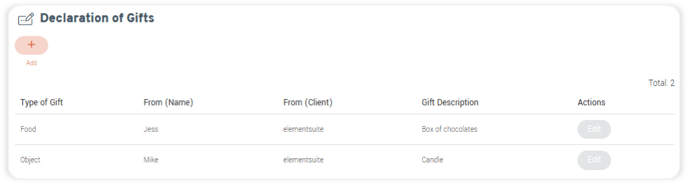
Tables allow users to input multiple sets of data into the same fields that are saved as rows in the table. This could used for declaring gifts.
Types of fields
Text:
Users can input a free text response.
Check Box:
Allows you to create multiple answer values for the user to select multiple answers. Add the potential answers under Options, then press Add Option to store it.
Number:
Users can input a numerical value.
Dropdown:
Allows you to create multiple answer values for the user to choose from. Add the potential answers under Options, then press Add Option to store it.
Date:
Enables a date selector to be used.
Paragraph:
Enter a block of text to appear in your custom card. This can include additional information for you employee to read before completing the fields.
Radio:
Allows you to create multiple answer values for the user to select a single answer. Add the potential answers under Options, then press Add Option to store it.
Signature:
Use this to get an employees signature, for example to confirm that they have read an Non-Disclosure Agreement.
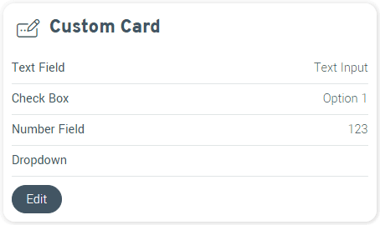
For multiple choice answers with field types such as checkbox or dropdown, ensure you click Add Option once the text is entered to ensure they are stored when you save the card.
You can come back and edit the cards when required. However, you can’t edit certain field attributes once the card has been saved e.g. the Field Type or Dropdown option text. These will need to be removed and re-added.
Custom Forms
Here you can create a separate page on an employee's profile where custom fields can be added. This can be used to capture other non-HR data required in the system, such as declarations of gifts, uniform sizes, vehicle descriptions etc.
To add a new page with custom fields:
- Click Add Card
- Enter the Title you want to appear in the navigation bar
- Ensure Active is ticked to make the card visible
- Select who should be able to view and access the form from the Visible By dropdown
- Under Fields, press Add to start building your custom form
- Enter a name for the field, select the type from the dropdown and provide options if prompted
-
Check the Required box to ensure users fill in the necessary field(s) before they press Save
-
Select the User Type that can view and edit the field
- Repeat until you have define all the fields that you need
- Press Save at the top of the page
- Go to an employee's profile to view your new page. This will show for an employee next to the Settings page in the My HR tile navigation
Important! Please note:
All custom forms appear in the same place – so the menu in My HR may become crowded if you add more than 3 custom forms.
Personal Details Fields
In Personal Details Fields you can change who can view and edit the individual fields under the Personal Details card on an employee's profile
To adjust the fields on the Personal Details card:
- Click Edit next to the field you want to change
- Here you can edit who can view and edit this field by selecting the User Type from the drop down or by pressing Select All
- Press Save
If you are unsure what a field is for, check out the HR Glossary in the Knowledge Base.
Personal Info Cards
In Personal Info Cards you can manage the visibility of the cards on the Personal Info page so that only certain users can see them. If the card is visible to a user, e.g. My Bank Details, they will be able to edit the associated fields
To manage the cards on the Personal Info page:
- Click Edit next to the card you want to change
- Here you can edit who can see this card by selecting the User Type from the drop down or by pressing Select All
- Press Save
Important! Please note:
Giving visibility to a given card also gives the user group edit access.
Required Details
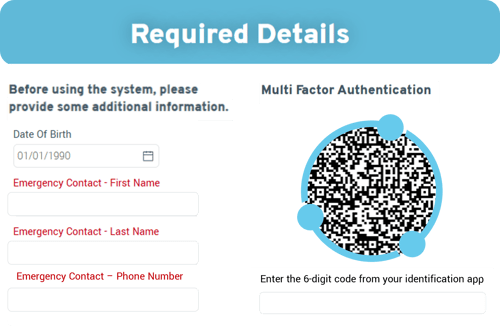
Required Details are used to get new users to enter mandatory information on first login (e.g. bank details, gender, etc.) In the Fields section of the Settings tile, you can control which fields must be completed before the user can access the system.
To turn on the required details page:
- Make sure the Enabled checkbox has been selected
- Customise the Title to what you want users to see when they first log in
- Check the Multifactor Authentication Active box and select the User Types that require it
- Select the Fields that you require to be filled in from the standard list or create Custom Fields
- Under Custom Fields, click Add then provide a Name and select the Type you require from the dropdown list
- Additional fields will appear for you to complete depending on the selected dropdown type.
- When finished, press Save
Setting up multi factor authentication will show a QR code to link authentication app to an employee’s everyday user account.
You can also change the order of the required fields by dragging and dropping them using the lines on the left-hand side.
Important! Please note:
Unless users provide the required details you ask for, they will not be able to access the system. This information may still require checking or validation.
After customizing field properties, save your changes to apply them across relevant forms or pages. It is important to test the updated field settings by entering data and reviewing how it is displayed or captured.
FAQs
Q: Can I add validation to custom fields and cards?
A: No, we recommend you make use of the field types and mandatory entry option to ensure you capture the right data.
Q: Can I delete the standard fields in the Personal Details card (or any other cards)?
A: No, but you can remove the visibility by deselecting all user groups in the Visibility section for the relevant card/field.
Q: If I add custom fields and cards, are they reportable?
A: Yes, anything you add will be available to create a report about via the Reports Builder.
Q: Are there any potential issues if I disable Required Details
A: If you do not have required details turned on, we recommend admins and/or managers checking payroll impactful information for new joiners, as any gaps or issues may impact pay.