.svg)
Discover how to build fixed working patterns to automatically populate shifts on the rota
Last Updated: 18/03/2025
What's covered:
What are Fixed Shift Templates
How to find Fixed Shift Templates
Creating Fixed Shift Templates
Adding auto-assign shifts to the template
What are Fixed Shift Templates?
Fixed shift templates are predefined shift patterns that automatically populate on rotas, saving time and effort compared to manual scheduling. They help ensure consistency in shift allocation by allowing you to assign shifts that align with employees' contracted hours or preferred availability.
When creating a fixed shift template, you can define the shift length and the days it applies. Once set up, the template can be assigned to an employee via the Work Patterns page. The employee’s primary role will be used when generating the schedule, unless an additional role is specified in the template, making it easy to maintain accurate and consistent staffing.
How to find Fixed Shift Templates:
- Navigate to the Settings tile from the main menu
- Click on the Settings Dropdown Menu and select Schedule
- Select the Fixed Shift Templates settings page to create templates that automatically populate shifts on the schedule.

Creating Fixed Shift Templates
Setting up fixed shift templates saves time and effort by automatically generating shifts on the schedule, ensuring consistency and accuracy. You can assign these to multiple employees or create rotating multi-week patterns for easy management. This helps highlight impacted shifts and coverage gaps when absences are booked.
Creating a new template
- Navigate to the Fixed Shift Templates page
- Select Create New from the dropdown in the top left
- Then press Load Template to generate a new blank template.

Creating an auto-assign shift
- Click the Assign button in the top right corner to show the auto-assign shifts
- Click Create on left hand side to build your standard shifts
- Add a Name for the shift and set Start/End times
- Press Save
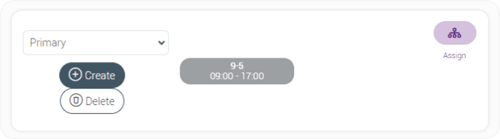
Adding Auto-Assign Shifts to the Template
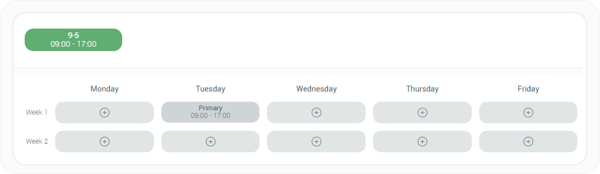
- Click on a shift to select it – the shift will turn green when selected.
- Select the day you want to add the shift to.
- Note: You can create multi-week templates by adding shifts to additional rows.
- To delete a shift, click the Delete button on the left-hand side, then click on the shift you want to remove.
- Repeat these steps until your complete shift pattern is created.
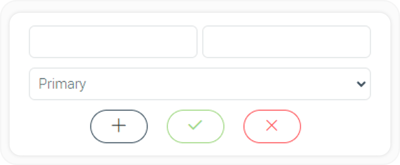
Adding a new shift
- Click on the day where you want to add a shift.
- Enter a start time in the left-hand box.
- Enter an end time in the right-hand box.
- Select the job role from the drop-down menu (choose primary role or additional role).
- Click the green tick to add the shift to the template.
Saving the template
- Click Save in the top right corner of the page.
- Enter a unique name for the template
- Click Save