.svg)
Learn how to edit, rearrange, and add tiles to customise your tile menu
Last Updated: 14/11/2024
What's covered:
How to find the Tile Menu settings
Rearranging the Tile Menu layout
Adding new tiles to the Tile Menu
What is the Tile Menu?
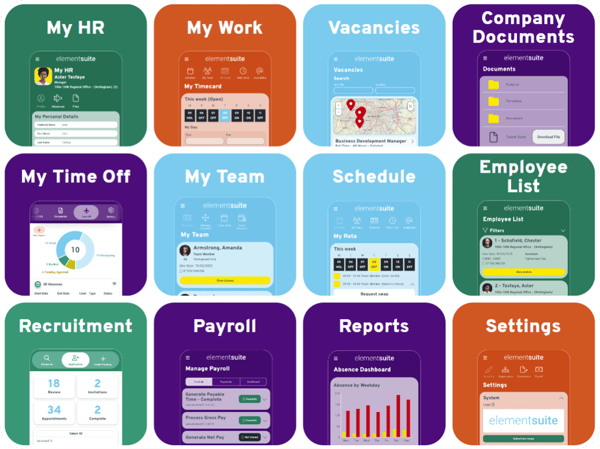
Each time you login, you’ll start at the Tile Menu. Each tile takes you to a different area of the system, helping you find what you need quickly and easily.
The tile are a user-friendly way to navigate through the system and can be customised to match your brand's terminology and look.
Each tile has in-built security, ensuring users only see the features relevant to their User Type. For example, “My Work” is accessible to Employees and higher, while “Settings” is for Administrators only.
How to find the Tile Menu settings:
- Navigate to the Settings tile from the main menu
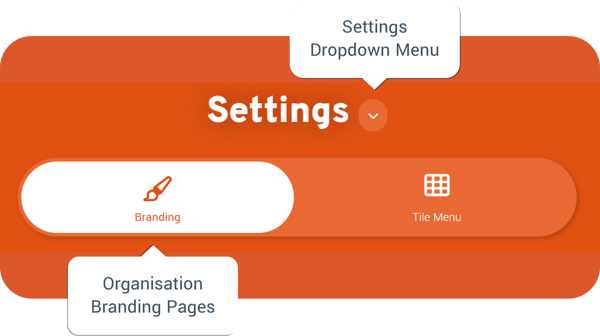
- Click on the settings dropdown menu and select Branding
- Select the Tile Menu tab to change the tile menu order, edit the tile images, and add new tiles
Rearranging the Tile Menu layout
The Tile Menu can easily be reordered using the drag and drop functionality. To reorder the tiles based on your businesses preferences, follow the steps below.
To rearrange the tile menu:
-
Use the search function to select a User Type (Administrator / Operations/ Manager / Employee / Pre-Hire) and see how the tile menu looks from their perspective.
- Drag and drop the tiles to your preferred order
- Click Save Changes
- Refresh the page and open the tile menu to see your changes
Editing tiles
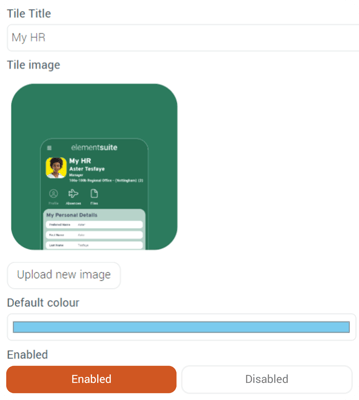
Customise the tiles to reflect your company’s branding and create a seamless employee experience. Upload an image, update the tile heading, or change the default background colour to match your brand.For easy navigation, use clear images and labels that represent each tile’s function.
User security settings control tile visibility, ensuring employees only see what’s relevant to their role. Keep the menu clean and efficient by removing unused tiles to improve navigation.
Tile image specifications:
- Aspect ratio: 1 : 1 (width to height)
- Minimum size: 500px (width) × 500px (height)
- File format: .png or .jpeg
To customise a tile:
- Click on a Tile to edit the name, image and background colour
- When editing the Tile Name we recommend adopting your company's terminology, for example, My HR could become Personal Details or My Work could become My Schedule, etc
- When choosing a tile image, ensure the heading remains clear and easy to read. Avoid busy images or black and white imagery, as they can make text harder to see.
- Edit the Visibility by selecting active or inactive.
- Active tiles will be visible in the Tile Menu for all the relevant User Types whilst Inactive tiles will be hidden from all users.
- Press Update to preview your changes
- After previewing, make sure you press Save Changes then refresh the page to view the changes
Adding new tiles to the Tile Menu
You can create new tiles that link to existing pages within everyday or direct users to external systems, websites, or key URLs. This keeps everything accessible from one centralised location, making it easy for users to find the tools and resources they need. Whether it’s an internal page, an external tool, or a key website, custom tiles provide a seamless way to connect everything in one place.
To add a new tile:
- Click Add at the top of the tile preview
- Enter the Tile Title
- Upload your Tile Image or select the default colour
- Enter the URL for the site you wish to link your tile to
- Links to external websites need the full address (i.e. including https://)
- Select all the user types you want to see the tile
- Ensure visibility is set to enabled
- Press Update to preview the new tile
- Drag the new tile to rearrange the menu
- Press Save Changes
Important! Please note:
If you do not have access to the correct tiles, contact a system admin and ask for your security to be updated