.svg)
Learn how to create and modify tabs in an employee's documents section
Last Updated: 21/11/2024
Document Tabs
Tabs are essential for organising employee documentation. Understanding how to add, edit, and configure them is crucial for maintaining a well-structured and easily accessible document repository. You can control which user groups can upload, access and delete files in each tab. There are several tabs already set up for you to edit or you can create your own.
What are Document Tabs?
Tabs are folders within the Documents section of an employee's profile which organise documentation, such as absence records, certificates, HR documents, payslips, and more.
How to find the Document settings:
If you need to manage the document tabs, follow these steps:
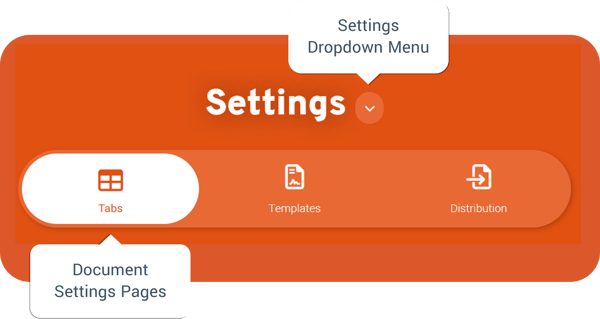
- Navigate to the Settings tile from the main tile meu
- Click on the settings dropdown menu and select Documents
- Select the Tabs page from the sub-navigation
How to manage Tabs
Within the document settings, you can create and modify various tabs displayed in the employee documents section. Whether you choose to edit existing tabs or add new ones, you can manage which user groups have permission to upload, access, and delete files within each tab.
To add new tabs in your employees' document sections:
- Click Add
- Enter the name of the tab as you want it to appear to employees
- Select the User Type to define who can view, download, upload or delete the files in this tab
- Set the Status to active or inactive
- Click Save
Important! Please note:
Once a new tab is created, it cannot be deleted, however, setting the tab to inactive ensures it remains hidden from all users.
Active tabs will be visible in your employees' documentation area and are arranged alphabetically for effortless navigation.
With the tab visibility and accessibility set up, you can now add documents and other files to an employee's area via Employee List or My Team. Contracts are triggered by changes to employment records whilst letters are added via the distribution page.
FAQs
Q. Can I edit an existing tab?
A: Yes, administrators can edit an existing tab by going to the documents settings and clicking "Edit".
Q: Can I delete an employee file tab created in error?
A: No, you can make it inactive, and it will not show to employees.
Q. What should I do if I want to change who can view or download files from a tab?
A: To adjust permissions for viewing or downloading files, Administrators should go to the documents settings, select the tab that needs modification, and click "Edit." Modify the relevant permissions and then press "Save" to apply the changes.
Q. How can I ensure a tab is visible to employees?
A: Make sure the tab is marked as "Active" in the tab settings and that the Employee user type shows in the relevant visibility fields. Inactive tabs will not be visible to any user.