.svg)
Learn about best practices and how to manage your organisation's locations and roles
Last Updated: 21/11/2024
Set up your organisational structure
In everyday, Administrators can set up and manage their company locations and roles from within the organisation section of the Settings tile. As your organisation grows and evolves, you can adjust and update the locations and roles.
What are Locations?
Locations can represent either a physical site, department or team within your organisation.
What are Roles?
Roles are the individual positions or job roles available within your business.
How to find the organisation settings:
- Navigate to the Settings tile from the main menu
- Click on the settings dropdown menu and select Organisation
- Select the relevant organisational settings page to add or edit locations or roles

Setting up Locations
The way locations are used can differ across organisations, reflecting their unique structural and operational needs. If you are using the rota functionality, this is where your employee's are scheduled so these need to align with your team’s rota setup.
Naming best practices
Here are three suggested naming methods for locations to provide clarity and consistency across your organisational structure.
- Site-based: For organisations that operate across multiple sites, this approach helps easily track resources and manage operations.
For example, you could use names like "London Head Office," "Manchester Office" "Edinburgh Store," or "Birmingham Site." - Department-based: Naming locations by department helps improve organisation and scheduling.
Examples include "Finance," "Operations," "Support," "Restaurant," "Floor," "Stock Room," etc. - Mixed naming: A combined method allows for easy identification of both the physical location and the department, which can be particularly beneficial for larger organisations with multiple teams operating in various places.
For example, you could structure the names similar to "Oxford Street - Floor," "Oxford Street - HR," "Piccadilly Circus - Floor," "Piccadilly Circus - HR."
How to set up Locations
- Click Add.
- Enter the name of your location.
- Provide cost centre details to track and control combined expenses under one budget for payroll and reporting purposes.
- Enter the full address. Adding a postcode allows you to use the web-clock's geolocation functionality for accurate clocking-in and clocking-out.
- New Locations are active by default. However, when a location is no longer being used and does not have anyone assigned to it, then it should be made inactive.
- Click Save
Important! Please note:
As part of the initial setup, a location of Head Office is assigned to the first user. This should be edited to reflect their correct details.
Creating a Location auto-generates a unique ID (non-editable) that is visible on the Location's overview page and can be used for reporting purposes.
Setting up Roles
Roles are utilised in several areas throughout the system, such as contract templates and rota scheduling. By establishing rota priorities and wage bandings, you can maintain consistency on the scheduling page and ensure that new hires receive the appropriate wage corresponding to their role. Additionally, when you adjust the minimum wage bands, the system automatically updates the wages for employees who fall below this threshold, ensuring compliance with wage requirements.
How to set up Roles
- Click Add.
- Enter the role name e.g. HR Manager, HR Director, Head of Staff, etc
- Set the rota priority to determine the order the roles appear on the schedule. For your most commonly scheduled roles, set them to one so they appear at the top of the scheduling page
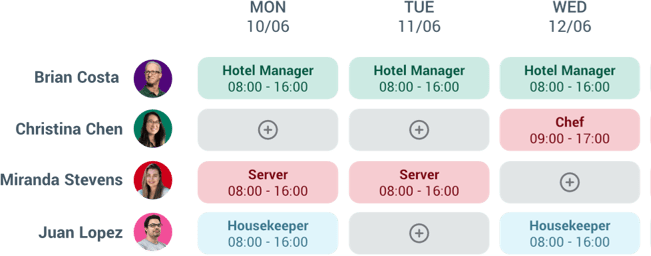
- If using scheduling, you can assign a rota colour to the role so that when shifts are assigned you can differentiate between roles more easily. Use the colour selector tool, or enter the RGB, HSL or HEX code of your chosen colour
-
Define the wage bandings for hourly and salaried employeesMinimum and maximum restricts what can be entered when hiring someone into this role. The warning wage can be used as a guidance to indicate that a wage entered for a new starter is too high
- New roles are active by default. However, when a role is no longer being used and is not assigned to anyone it should be made inactive
- Click Save
Important! Please note:
As part of the initial setup, a role of Administrator is assigned to the first user. This should be edited to reflect their correct details.
Creating a role auto-generates a unique ID (non-editable) that is visible on the roles overview page and can be used for reporting purposes.
Data Migration
As part of your employee data migration process, the system will automatically generate new roles and locations if they are not already in the system. This simplifies the process and ensures that your organisational structure is up to date.
Once the data migration has been completed, you will need to edit the locations and roles to provide additional details such as postcodes and wage bandings.
FAQs
Q: What happens if I create a Location or Role manually and a duplicate via data migration?
A: If you add a duplicate, you should make the dupe inactive and make sure any employees in that are moved to the proper location or role.
Q: What does making a Location or Role inactive do?
A: It will not be visible in drop downs or be available for selection in other areas of the system.
Q: What happens if I make a Location or Role inactive when a user is still associated with it?
A: Users will still be active, but this will impact other areas of the system for example, they will no longer be included in schedules.
Q: What happens if I create a number of Locations or Roles by mistake?
A: Make them inactive and then when viewing Locations/Roles filter to display active only.
Q: Can Locations or Roles be deleted?
A: No. They can be made inactive but not deleted, this is to ensure that the system has a history of past Roles/Locations.
Q: Can I edit the Location or Role ID?
A: No. They are system generated, unique, and non-editable. If you want to add a company specific ID this can be added into the name field.