.svg)
Find out how to set up and use the Wall clock and Web clock
Last Updated: 18/03/2025
What's covered:
Setting up Clocking
For organisations using the scheduling features, clocking is a great way to ensure that timecards are updated in real time. In everyday, you can choose between two clocking methods: Wall Clock and Web Clock.
What is a Wall Clock?
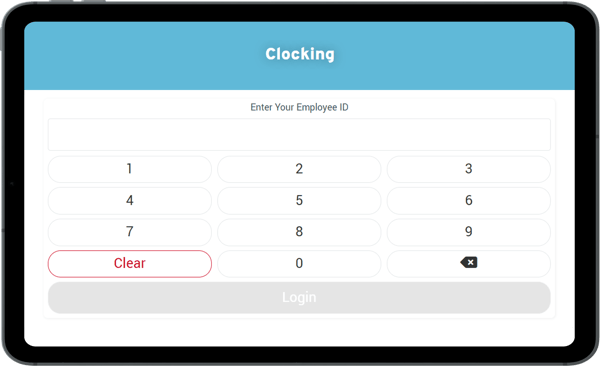
The Wall Clock allows employees to clock in and out using a specific device located on-site. To clock in or out, employees simply enter their employee ID on the device.
What is a Web Clock?
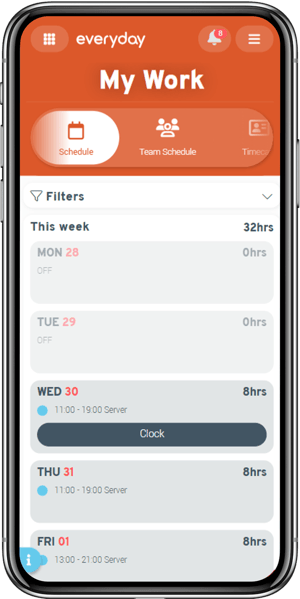
The Web Clock enables employees to clock in from the My Work tile when they are at an approved location or connected to the organisation’s Wi-Fi.
How to find the Clocking settings:
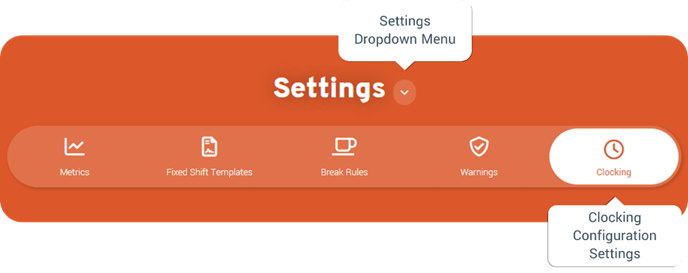
- Navigate to the Settings tile from the main menu
- Click on the Settings Dropdown Menu and select Schedule
- Select the Clocking settings page to set up the wall clock or web clock for your employees to clock in.
Setting up the Wall Clock
The Wall Clock allows employees to clock in and out using designated devices at your locations. This can be accessed by logging in to everyday using the credentials set up via the Clocking settings page. Employees can then use their unique employee ID to record their clock-ins and clock-outs.
To set up the Wall Clock:
- Navigate to Clocking Settings and scroll down to Wall Clock.
- Take note of the Wall Clock Username generated by the system.
- Set a password for your Wall Clock device.
- Click Save to confirm your settings.
- On your on-site device, log in to everyday using the Wall Clock username and password.
- Employees can now clock in and out using their unique employee ID.
Setting up the Web Clock
The Web Clock allows employees to clock in and out via the app on their mobile device. To ensure accurate clocking, you can restrict access to specific IP addresses and locations. This means employees must be connected to approved networks or be within the locations geo-fence (based on the locations postcode).
To set up the Web Clock:
- Navigate to Clocking Settings and scroll down to Web Clock.
- Under Enabled, set the option to True.
- Click Save to confirm your settings.
Setting Up IP Whitelisting
To set up IP Whitelisting:
- Click Add and enter a Description.
- Enter the approved network's IP address.
- Set the Status to Active.
- Click Save.
Important! Please note:
For mobile web clocking, employees must be within 30 meters of the site (based on longitude and latitude generated from the postcode) to clock in or out. If they are outside this range, clocking will not be possible.
If you choose to restrict clocking to approved networks, the IP address must be static for whitelisting to work correctly. Be aware that some IT setups can cause IP addresses to vary. To avoid issues, check with your IT team to ensure your IP address is static.