.svg)
Learn how to set up metrics so you can benefit from accurate labour forecasts
Last Updated: 17/03/2025
Introducing Metrics
By analysing historical data, such as sales figures, customer footfall, seasonal trends, and past staffing levels, metrics help your business assign labour against your forecasted demand. This enables you to schedule the right people, to the right place, at the right time, improving operational efficiency, customer service, and employee satisfaction.
Key forecasting metrics could include:
- Labour Metrics – Total Hourly Scheduled Hours and Total Salaried Scheduled Hours
- Cost Metrics – Total Hourly Rota Costs and Total Salaried Rota Costs
- Sales Metrics – Expected Sales per Labour Hour
- Demand Metrics – Customer Footfall or Average Transaction Value
- Efficiency Metrics – Revenue per Employee, Shift Coverage Ratio
- Event-Based Metrics – Weather Conditions, Local Events Impact or Seasonal Trends
How to find the Metrics settings:
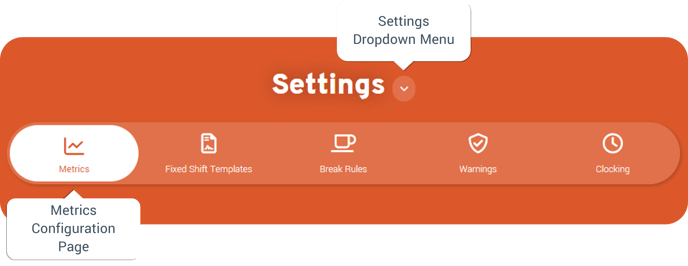
- Navigate to the Settings tile from the main menu
- Click on the Settings Dropdown Menu and select Schedule
- Select the Metrics page to create and edit forecasting metrics to inform your schedule
What are metric categories?
Metrics are grouped together using categories which are then assigned to specific locations and roles for easier tracking and analysis.
For example, if you manage a hotel, you might create a metric category specifically for housekeeping. Within this category, you could include metrics such as total occupancy, number of check-outs, and average room cleaning time.
By combining these metrics, you can accurately determine how many housekeeping staff are needed on shift to meet room cleaning demand.
Default Metric Categories
When first setting up metrics, you fill find two categories already set up for you – Events and All
All (Predefined Metrics)
The following metrics are included as standard in each new category you create. They can be used on their own or in combination with other metrics as part of a calculation.
- Salaried Rota Hours – Total hours scheduled for salaried employees.
- Hourly Rota Hours – Total hours scheduled for hourly employees.
- Salaried Rota Cost – Estimated cost of salaried employees based on the rota.
- Hourly Rota Cost – Total cost of scheduled hourly employees.
The Events category contains the metrics mentioned above with the addition of:
- Weather – Displays the weather icon from the forecast integration if a postcode is set for the location.
- Local Events – Allows manual entry of local events on the Forecast page.
The Events category includes all metrics from the All category, along with additional event-specific data. This combined view allows you to more accurately forecast labour requirements, taking into account the impact of events on demand.
Important! Please note:
Each Role should only be assigned to one metric category – make sure there is no overlap as this will impact your metrics output.
If metrics are not showing on the Forecast or Rota page: ensure that the metric category has the right Locations/Roles selected, and that 'Visible’ and ‘Show on Rota’ are marked as 'True'.
Adding Metric Categories
- Navigate to the Metrics page in the settings tile
- Click Add to create a new metric category
- Enter the Name of metric category. e.g. hotel occupancy or hotel restaurant
- Select all the Locations that the metrics in the group will apply to
- Select all the Roles that will be involved to calculate the metrics associated with the category
- Visibility enables you to manage whether all the metrics in the group are visible or not
- Click Save
Building Metrics
Metrics help managers track key rota and timecard data, providing insights for forecasting and scheduling. Metrics measure factors like labour costs, staffing levels, and sales to optimise schedules, reduce overspend on labour costs, and maintain service quality.
For example, if you track covers booked, you can use this data to calculate staffing needs.
If one server is required for every ten covers, you can set up a calculation as follows:
Number of Covers Booked × 0.1 (1 server per 10 covers) = Servers Needed
Simply enter the number of bookings for each day, and the system will automatically calculate the required number of servers using this formula.
Creating new Metrics
To create a new metric:
- Click the Metrics button next to your metric category.
- Press Add to create a new metric.
- Enter the Name of the metric as it should appear on the scheduling page.
- Use the Description field to provide details about the calculation or purpose – this appears when users hover over the metric.
- Set the Order Number to define the metric’s position on the page (higher numbers place it further down).
- Select the Data Type for the metric output:
- Currency – Displays a numeric value with a currency sign
- Numeric – Displays a numeric value (units can be set to hours, percentage or no units).
- String – Displays as text, allowing manual entry from the forecast page.
- For Currency and Numeric data types, choose how data is entered:
- Manual – Users input values directly on the forecast page.
- Calculate – Create a formula to generate results automatically.
- Decide if the metric should appear on the Rota screen:
- By default, all metrics appear on the Forecast screen when Visible is set to True.
- Enable Show on Rota to display it there as well.
- Click Save and repeat for each metric you need to add or edit.
This process ensures your metrics provide clear, actionable insights for scheduling and forecasting.
Metric Calculations
Create custom formulas to generate data-driven insights for more accurate forecasting and scheduling. Use existing metrics, such as hours worked, sales figures, and staffing levels, or input numeric values to calculate new key business metrics.
For example, calculate Productivity Rate as:
Units Produced / Total Hours Worked
To do this, first create the metric Total Hours Worked by combining the predefined metrics Salaried Rota Hours and Hourly Rota Hours. Next, add a manual input metric for Units Produced. Use the Expression Builder to combine theses in a formula that calculates the Productivity Rate.
By leveraging metric calculations, managers can make data-driven decisions, improve operational efficiency, and maintain scheduling accuracy.
To build your own calculated metric:
- Select Calculate as the Metric type to open the Expression Builder.
- Build your formula by dragging and dropping variables into the expression box. You can use:
- Metrics: Incorporate existing metrics in your calculation.
- Operators: Add, subtract, multiply, divide, use modulo (remainder), and apply brackets to structure your formula.
- Values: Input a static number to include in the equation.
- Remove variables from the expression box by double-clicking on them.
Important! Please note:
When creating calculated metrics, you can start with the four predefined options. For custom calculations, such as Sales per Labour Hour (Total Sales / Total Rota Hours), you must first create a manual metric for Total Sales. This enables managers to input weekly sales figures, allowing the system to automatically calculate performance metrics.