.svg)
Find out how to set up letters and emails to be distributed around your organisation
Last Updated: 21/11/2024
Distributing documents
This article will walk you through the process of distributing documents on a regular basis.
Contracts are triggered by employment changes, such as hiring, pay changes, promotions, etc, whilst letters and emails are design for formal and informal company communications that are sent to employees on an one-off basis. These can be sent immediately or scheduled via the distributions page.
What is distribution?
The distribution page allows you to schedule and send letters and emails across the business. You can upload letters in any tab on an employee's file whilst emails are sent to their preferred email address.
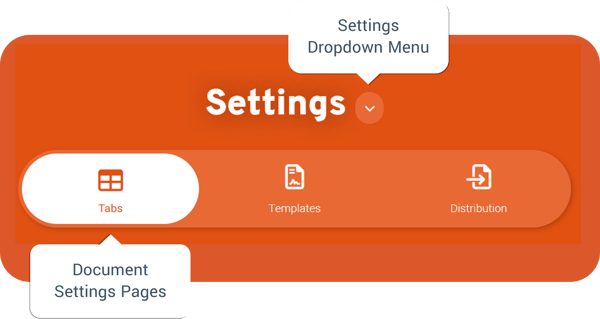
How to find the Document settings:
- Navigate to the Settings tile from the main tile menu
- Click on settings dropdown menu and select Documents
- Select the Distribution page from the sub-navigation
How to distribute letter and email templates
When you create an email or letter template, you can then go to the distribution page and schedule it to be sent on a particular day and time.
When distributing letters and emails, select your recipients according to their pay basis, employment type, roles or locations. As part of this you can make adhoc edits using the wysiwyg editor and smart content.
For letters, select the tab on an employee's file to have the letter stored. This can be for your eyes only or for employees to view depending on how the tabs have been set up. Meanwhile emails are sent to the employee's preferred email address.
If the document you want to create needs to be triggered by an event occuring within the system, then you will need to set this up via the Contracts section.
Letter Distribution
To send out a Letter template:
- Select Letter as the template type
- Enter the Subject
- Click the Tab on Employee File dropdown and select the tab to upload the letter to
- Select the saved letter template from the Document Template drop-down list
- Use Pay Basis, Employment Type, Roles and Locations to define your distribution.
- Additionally, select an individual from the drop-down list that has filtered to show employees who match your previously defined distribution group.
- Selecting an individual gives you the option to create an adhoc letter. Here you can add additional details for that individual using the wysiwyg editor and smart content fields.
- When completed press Save and Generate to create the Letter and add it to the chosen Tab in the employees' documents.
Email Distribution
To send out an Email template:
- Select Email as the template type
- Enter the Subject
- Select the saved email template from the Document Template drop-down list
- Use Pay Basis, Employment Type, Job Roles and Site to define your distribution.
- Additionally, select an individual from the drop-down list that has filtered to show employees who match your previously defined distribution group.
- Selecting an individual gives you the option to create an adhoc letter. Here you can add additional details for that individual using the wysiwyg editor and smart content fields.
- Enable Schedule and enter a date and time you want the email to be sent.
- When completed press Save Changes to set your distribution
Important! Please note:
Emails and Letters are meant for one-off distributions, if the document you want to create needs to be triggered then you will need to set it up via the Contracts section.
FAQs
Q: How can I check the list of individuals for a given distribution before I send it?
A: You can use the Report Builder to replicate the filters you have selected and determine who is on the distribution list.
Q: Can I send a letter or email based on a trigger?
A: No, Emails and Letters are intended for one-off distributions. Alternatively you can:
(i) Manually upload files to an employee’s file section
(ii) Generate Contracts based on employment changes
(iii) Send a one-off distribution using Letters/Emails targeted at one/many/all employees