.svg)
Discover what templates you can create using AI generation and smart content
Last Updated: 14/11/2024
Introducing document templates
By using templates, you ensure consistency and efficiency in document preparation, whether it's for new hires, employment changes, or other communications. In this article, we’ll guide you through the available features and how to create and manage several types of templates in the documentation settings.
What are document templates?
Templates are pre-designed formats for creating different types of documents, such as contracts, emails, and letters. You can create templates for new hire contracts, employment changes (e.g., pay adjustments or promotions), and other communications.
How to find the Document settings:
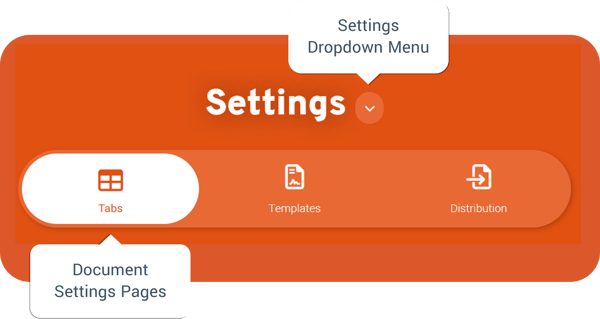
- Navigate to the Settings tile from the main tile menu
- Click on settings dropdown menu and select Documents
- Select the Templates page from the sub-navigation
WYSIWYG editor
"What You See Is What You Get" or WYSIWYG is a software tool that allows you to preview your document whilst creating it. This type of editor enables users to format text, images, and other elements visually, without needing to use HTML or other coding languages.

Here's how you can use the WYSIWYG editor in everyday:
-
Accessing the editor: When you come across a text field that supports the WYSIWYG editor, you will see a toolbar at the top of the text field area with formatting options like bold, italics, bullet points, etc.
-
Formatting text: Simply highlight the text you want to format and then use the toolbar options to apply formatting such as bold, italics, underline, font styles, text alignment, and more.
-
Inserting links and images: Look for icons on the toolbar for inserting hyperlinks and images, and follow the prompts to add them to your content.
-
Previewing content: See how your document will appear to others once it is published.
-
Saving your changes: Make sure to manually save your changes before exiting the editor.
Smart Content
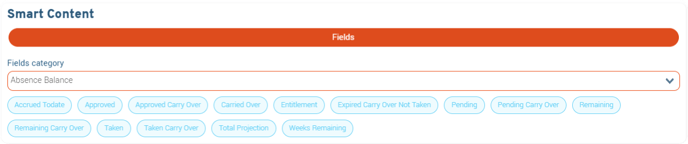
Additionally, the document designer section contains dynamic fields which can be used to create more personalised documents. These act as placeholders in your template which will insert employee data from the system when the document is generated.
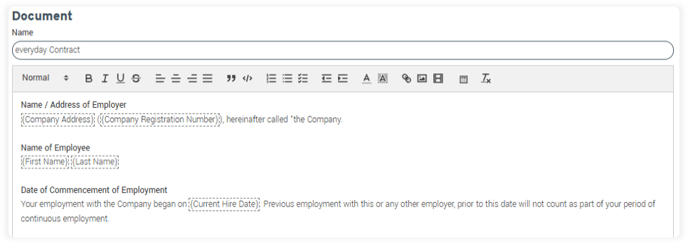
To use, simply click on a dynamic field to insert it when creating your document. An example template can be found in the contracts section where you can see how these fields are used.
Types of templates
There are several types of templates that you can create.
Contract: Create templates for contracts that are triggered by employment changes, such as hiring, pay changes, promotions, etc.
Letter: Design formal company letters that are sent to employees on an individual basis and saved to a selected file tab.
Email: Create one-time emails for employees, which are saved to a selected file tab.
Recruitment emails: Build custom templates to link to each stage of your recruitment process.
Welcome email: Tailor welcome emails for new hires that are sent when they are first added to the system. You can add your company logo and adjust the wording to include onboarding activities.
Reset password: Personalise password reset emails by adding your company logo and updating the wording.
Important! Please note:
Only one welcome email and one reset password template can be used at a time. We recommend you have one email template set up to welcome existing users to your new platform and then edit it so that it is tailored for your new starters.
Contract Templates
The system comes with an example contract for a new starter – this acts as a reference for you to create your own.
Remember to test the contracts you set up by making a change in the system (new hire, pay change, etc.) and checking the document is generated into the correct files tab, and the relevant employee receives a notification.
If you need to add new contracts or edit existing ones, follow these steps:
- In the menu on the left-hand side, select Contracts.
- To add a new document template, click Add.
- Name your contract and build out the content.
- For personalisation, use the Smart Content dropdown at the top of the page to insert dynamic fields (e.g., Employee name, email, job role, entitlement, etc)
- These fields will automatically populate with the information recorded for the employee when the contract is generated.
- Use the options below to define the group of employees that this contract applies to.
- Click Save.
Important! Please note:
Remember to test the Contracts you set up by making a change in the system (new hire, pay change, etc.) and checking the document is generated into the correct files tab, and the relevant employee receives a notification.
Distribution Options:
Adjust the following options to define the group of employees that you want to receive this template when a change is made in the system .
Can Edit in New Starter: Allows the contract to be manually updated or edited during the new starter workflow before it is sent. If this option is unticked, the contract will be sent as per the template and cannot be modified before sending.
Pay Basis: Specify the payment structure, such as hourly or salaried.
Employment Type: Define the type of employment, such as Permanent, Fixed Term, or Casual.
Job Roles: List of job roles set up in the system (e.g., Support Manager, CEO)
Entry Type: Specifies the event that triggers contract generation (e.g., Hire, Pay Change)
Entry Reason: Defines the reason for generating the contract (e.g., Promotion, Pay Increase, Pay Decrease)
Template: Ensure this is ticked to activate the template.
Locations: Identify the relevant locations or teams (e.g. Delivery)
Email Templates
Emails are meant for one-off distributions of informal company communications. If you need to add new email templates or edit existing ones, HR admins can follow these steps:
- In the menu on the left-hand side, select Email.
- To add a new email template, click Add.
- Name your email and build out the content.
- For personalisation, use the Smart Content dropdown at the top of the page to insert dynamic fields (e.g., Employee name, email, job role, entitlement, etc)
- These fields will automatically populate with the information recorded for the employee when the contract is generated.
- Click Save.
Letter Templates
Letters are meant for one-off distributions of formal company communications such as passing your probation. If you need to add letter templates or edit existing ones, HR admins can follow these steps:
- In the menu on the left-hand side, select Letters.
- To add a new letter template, click Add.
- Name your Letter and build out the content.
- For personalisation, use the Smart Content dropdown at the top of the page to insert dynamic fields (e.g., Employee name, email, job role, entitlement, etc.).
- These fields will automatically populate with the information recorded for the employee when the contract is generated.
- Click Save.
Important! Please note:
Emails and Letters are meant for one-off distributions. If the document you want to create needs to be triggered by a system action, then you need to set it up via Contracts.
Welcome Email
You can only ever have one welcome email template setup at any point. You may need to first edit this template to welcome existing employees joining the new system. Then edit it to focus on new joiners to your business.
If you need to create or edit your welcome email, HR admins can follow these steps:
- In the menu on the left-hand side, select Welcome email
- To add a new email template, click Add.
- Adjust the Name of your email and build out the content.
- For personalisation, use the Smart Content dropdown at the top of the page to insert dynamic fields (e.g., Employee name, email, job role, entitlement, etc.).
- Make sure that the Employee Username and Welcome Link are included for a smooth user onboarding experiences.
- Enter your welcome email subject line.
- Select the locations that will receive the welcome email. We recommend setting to All.
- Click Save
Reset Password Emails
You can only ever have one reset password template setup at any point. If you need to create or edit the reset password email, HR admins can follow these steps:
- In the menu on the left-hand side, select Reset Password
- To add a new email template, click Add
- Adjust the Name of your email and build out the content.
- For personalisation, use the Smart Content dropdown at the top of the page to insert dynamic fields (e.g., Employee name, email, job role, entitlement, etc.).
- Make sure that the Reset Password Link has been included for a smooth user experience.
- Select the locations that will receive the welcome email. We recommend setting to All.
- Click Save
FAQs
Q. What are document templates?
A: Document templates are used for creating standard documents like contracts, emails, and letters.
Q. How do I use templates?
A. Contracts are generated when a change is made in the system. You can define what changes will trigger each contract when creating them , by selecting the pay basis, employment type, roles, entry type, entry reason, and locations. Emails and letters are used on the distributions page to send informal/formal communications. These templates will auto-fill any dynamic fields used with the employee-specific information upon distribution.
Q. Can I customise the content of a document template?
A: Yes, you can customise the template by editing the body text and inserting dynamic fields from the Smart Content dropdown. This allows you to personalise the document according to the specific details of each employee.
Q: If I delete all Contract Templates, what happens for new joiners?
A: The system will not be able to generate a contract for any new joiners.
Q: What is difference between current assignment and future and what should I use for a new starter contract?
A: Current assignments are used for new starters and other contracts/letters that need information about the current active role. Future assignments contain information needed for upcoming changes which are future-dated for example informing an employee about an upcoming promotion.